6/15/08

PC-Maintenance

Maintaining your computer is the key to keeping it healthy and fully working and of course, fast. Windows 95 has most of the tools for maintaining your PC, but Windows 98 extends the possibilities and makes it even less of a hassle. If you follow the list below and run the programs listed frequently, you will be guaranteed to have a maintained computer at no extra cost. There are, however, other programs in the market with stronger engines, but then again, they're not free (stop smiling...)

Most of these programs can be found under the Start, Programs, Accessories, System Tools folder.


1. Disk Defrag: It is advisable to run Defrag under Windows 95 once a month or when you add/remove programs. However, under Windows 98, you can run it every week if you want because it has a new engine, which means that the more you run it, the faster your computer will get. What happens is that your programs are placed on your hard disk in a way so that the ones you use most often are easier for the hard disk to find and run. Make sure that the 'make my programs run faster' is ticked in the 'Settings' window in Defrag.

2. Scandisk: Running a thorough check is good once a month in both Windows 95 and 98. Run this once a month if you feel that your hard disk takes a long time to load programs. A standard check is very fast and checks for basic disk problems concerning files and folders and lost fragments. It takes an average 2 minutes to complete so try running it often.


3. Disk cleanup: This one is good for seeing how much disk space is being used up by unnecessary files that are in the recycle bin, temp folder, or in temporary internet folders. You can then remove them!

4. RegClean: A simple but effective piece of software this is. You can download it for free from Microsoft's web site. It is also available on many magazine cover disks. Reg Clean takes about a minute to check the registry. Then it asks whether you want to clean out redundant or orphan file. This usually helps the computer to get rid of files that have been left behind by uninstalled programs.

5. Windows update: It's a good idea to use Windows Update to make sure your computer has all the latest fixes, patches and updates. You can do so by clicking on its icon in the Start Menu under Windows 98.


6. TweakALL: A very handy program that allows to change settings, which cannot be changed using Windows alone!


Thank you for detail by "http://hack2007.50webs.com"

10/17/07

How to Change the Font size of Web page?

If you are visiting a website or reading an e-mail and there is some problem to read text due to color of page or the font too small. You can change the font and color as well to solve this problem.
- To increase or decrease your font size and color of webpage in Internet Explorer, select the Tools option from the top of your Explorer window and go to the Internet options.
- Here go the General option and then click on Accessibility button on right lower of the dialog box.
- Now change the status of checkbox marked "Ignore font sizes specified on Web pages" and next Ignore Colors specified on Web pages", end with Ok.
- For change the font size select to View option from the top menu and go to Text size option to change it.

How to Clean computer Casing ?

When you noticed your computer case is looking yellowish then you can understand about inner side of your computer case as dirty as outside. Because Dust is the main cause to heat up your system and heat link to hardware failure. You can save your computer maintenance cost if you clean your computer on the regular basis.
- Never place your computer on the ground, always use computer table or shelf for this purpose.
- To clean computer case first unplugs your system power from the electrical outlet. Remove all cables and connectors from the back side of your computer.
- Now use the compressed air and start clean from back to front of your computer case, specially casing and power supply fan.
- At the end using lightly dampened cloth or spray any cleaning fluids on the computer case and use paper towel to dry it.
- This process should be done after every three months if you want to save your system life.

10/11/07

How to speed up your Broadband internet connection?

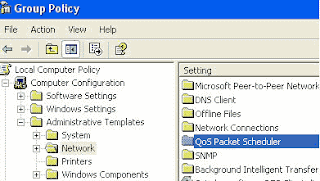
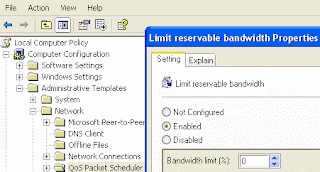
You can increase the speed of your broadband internet connection, if you are using windows XP on your computer. This is built-in feature of windows XP to reserve the 20 percent of bandwidth of your internet connection, but you can override of this default setting. By enabling these setting, you can use this reserve bandwidth and enjoy your speedy broadband internet connection. You can set reserve able limit from 0 to 100 percent, but if you want to enjoy 100 percent bandwidth of internet connection, you should configure bandwidth limit 0 percent.


Follow the given steps to configure bandwidth limit:

- First click on Start button then type "GPedit.msc" in Run option and press Enter.
- Under "Local Computer Policy" expand the "administrative templates".


- Here in right side window expand the "Network" then highlight the "QoS Packet Scheduler".
- Now again in right side window, double click on "limit reservable bandwidth".
- Under the "Limit reservable bandwidth properties" dialog box check "enabled" then change the "Bandwidth limit % to zero.
- Now close the Group Policy editor and restart your compute, after any changes to go into effect.

10/8/07

How to Clear Your unnecessary backups files?

It is a good practice to make the backup of the important data. In many computer applications you can use the auto backup option to make the backup of a important file after specific time or set make auto backup on save. Normally backup files take up few kilobytes of your hard disk space but backup size depends upon the size of actual size.
But some time these auto backup files take up extra hard disk space and can slow your computer performance. You can clear these unnecessary backup files cluttering up you computer. First search and then delete these file. Search with some common backup file extensions, for example .bac, .bak, .bck, .bk!, .bk$. After search result you can delete the unnecessary backup files.

What to look for when you are buying a web cam.

IResolution: Standard rez is 320x240 but some will do 640x480. There is no resolution beyond VGA yet.

Frame rate: Aim for 30 frames per second. Most mid-priced cams will do this frame rate these days. Your internet connection will be the bottle neck on the frame rate.

Internet connection: You should also check the upload speed on you Internet connection. It is a fraction of the speed of your download connection. To get an image of 15 fps you need an upload speed of about 256 kbps.

Price: The higher the price the more onboard image processing in the camera. So if you have an old computer go up market on your webcam to take the load off the old PC.

Your PC's age: The older your PC the pricier the webcam you should buy because image processing will be done in the camera and not on the computer.

Lens: Typically it is not spelled out on the box but the pricier the cam the more likely it will have glass rather than a plastic lens. Glass will give you a clean image.

Light sensitivity:The higher end cams have better performance in low light.
Image: You'll get a sharper crisper image on the high end -- which is $79 to $99 US

Pan and tilt:Up at the top end of pricing you'll get pan and tilt capabilities. That's past the $100 US mark.

10/3/07

How to Enable the Windows Task Manager?

Windows Task Manager is used to view the status of running applications, active processes, CPU and Page file usage history and active user in windows environment. As a system administrator you can mange the all features of Windows Task Manager, you can end task any running application and set the priority of any running process according to application importance. By default Windows Task Manager Status is enabled, but a user can also disable or enable it manually. But some time a registry hack applies on windows task manager to disable it and your system give you a message” Task Manager has been disabled by your administrator.” then you should enable it with editing the system registry or using Group Policy Editor.

Before proceeding further, first scan your system with up-to-date antivirus, and then follow the given steps to enable it using group policy editor.


  • To enable this feature, you will need to be logged into your computer with administrative rights.

  • Now click on Start button and type “Gpedit.msc” in Run option then press OK.


  • In Group Policy Editor, expand the “Administrative Templates” > “System” then “Ctrl+Alt+Del Options”, under the User Configuration option.

  • Now in right side of panel “Ctrl+Alt+Del Options” double click on “Remove Task Manager” to change it setting. Here set the option “Disable” to “Enable” or “Not configured” and your task manager is available once again.


9/30/07

What is Bluetooth Technology?

Bluetooth is a wireless technology that enables any electrical device to wirelessly communicate in the range of 2.5 GHz ISM frequency band. Mobile phones, headsets, PDA's and portable computers can communicate and send data to each other without wires or cables to link to devices together. The name of Bluetooth derived from the name of an English king Harold Bluetooth.

It a low cost, low power, radio technology, which is particularly suited to the short range Personal Area Network (PAN) application. Bluetooth Special Interest Group is authorized to develop its specifications & license.

The Main Features of Bluetooth are given below:

  • It operates in the 2.4GHz frequency band without having a license for wireless communication.
  • Up to 10-100 meters data can be transfer in real time.
  • Close proximity & accuracy is not required for Bluetooth as in case of infrared data (IrDA) communication device. Bluetooth does not suffer from interference from obstacles such as walls while infrared suffers due to obstacles.
  • Bluetooth supports both point-to-point and point-to-multipoint wireless connections without cables between mobile phones and personal computers.
  • Data transfer rate of blue tooth varies from version to version. Data rate of 1 Mbps for Version 1.2 Up to 3 Mbps for Version 2.0.

Then major parts of Bluetooth system are RF transceiver, base band, and protocol stack. Bluetooth is used for small-area networking without user intervention. Due to extremely low transmission power in Bluetooth technique battery power is saved. It is a networking standard that works at two levels:

· Physical level.

· Protocol level

Due to these levels mobiles have to agree on these levels when bits are sent. It decides the amount of data to be sent at a time, and how the parties in a conversation can be sure that the message received is the same as the message sent.

Bluetooth networking transmits data through low-power radio waves. It can connect up to eight devices simultaneously. With in the range of about ten meters you must think that the devices will not interfere with each other. Bluetooth solved the problem of devices interference while sending the data by using the technique of Spread-Spectrum Frequency Hopping due to which devices may transfer data at the same frequency at the same time. The question rises here is how Bluetooth send the same data using same frequency band without devices interferences? In Bluetooth technique, transmitters change frequencies 1,600 times in every second. In this way devices can make full use of a limited band of the radio spectrum.

When Bluetooth devices came into the range of each other, conversations take place automatically. This conversation automatically determines whether they have the data to share or not. In this way Bluetooth devices not only share the data but also control the data to be transferred. When the connection is established, the devices either they are part of a computer system or a network, Bluetooth systems create a personal-area network.

The technology used in Bluetooth also provides security in three ways:

· Pseudo-random frequency hopping,

· Authentication,

· Encryption.

Frequency hops make it difficult for anyone to eavesdrop. Authentication allows a user to limit connectivity to specified devices. Encryption uses secret keys to make data intelligible only to authorized parties.

Service-level security and device-level security work together to protect Bluetooth devices from unauthorized data transmission.

Many serious problems create only due to improper security issues. Some of them are given below:

  • Blue jacking
  • Blue bugging
  • Car Whisperer

Blue Jacking

It is used to send a business card in the form of text message via Bluetooth to other users. It should be noted that the distance between two users is not more than 10 meters. If the user doesn't found the proper text, he should add the contact to his phone book. After saving his contact in his address book retry to send the same message. In this way the user can get business card from other user via Bluetooth. It’s all because of the known destination from where the massage is being coming.

Blue Bugging

Due to this hackers can access user’s phone. It not only access one’s mobile phone, but also use its features including placing call, messaging. Even though the user doesn't realize it’s happening.

Car Whisperer

Car whisper is a type of software due to which hackers can send and receive audio file from a Bluetooth-enabled car stereo.

By.." http://www.computerfreetips.com/"

9/29/07

Tips On Buying A CPU / Processor

INTRODUCTION

Processor is considered the brain of the computer. The CPU fetches instructions of program from main memory and executes them one by one. The speed of the CPU is measured in Mega Hertz or Giga Hertz and speed from 500 MHz to 3.4 GHz, it depends upon a user needs, that is why purchasing a processor is an important consideration when building or buying a computer. There are several considerations and additional information about what to ask and look for when purchasing a processor directly or already installed into a computer.

TYPE

The type of the processor can be very important consideration for users who are building a computer. The main thing in processor is the compatibility with the motherboard, Because the processor chip is plugged into the motherboard. Today there are many processor manufacturers AMD, Motorola and Intel. Final decision to buy a processor depends upon user need for example a home or basic user can buy Intel Celeron or AMD processor. If you can afford then must go for latest processor if you want your computer to retain functionality for four to six years. When considering any of the above companies product ensure that a motherboard that is compatible with that product is also purchased. For example if an Intel motherboard is purchased or currently installed into the computer you will want to consider an Intel Processor.

By.." http://www.computerfreetips.com/"

Tips On Buying Computer Monitors.

Introduction of Monitor

The monitor is a popular and most commonly used output device. Most monitors used in personal computers to display text, graphics, and video information. Due to different futures of monitor purchasing can be one of the most important task. Follow the some given steps to buying new or used monitor.

Technology of monitor

There are two basic types of monitors that are used with personal computer.

  • CRT monitors

  • Flat-Panel Monitors

when you are purchasing a monitor it is important to know, you need a CRT monitor or a Flat Panel monitor.

CRT Monitors. A CRT monitor is similar to standard television. Like televisions, CRT monitor size is measured diagonally, in inches, across the front of the screen. Today, CRT monitors are available in various sizes, i.e., 15, 17, 19, 21, and 22 inches. The large size monitors are more expensive and allow you to view more information on the screen at once.

Flat Panel / LCD. A flat panel monitor is also called LCD monitor. A flat panel monitor takes up less desk space and also consumes less power. Flat panel monitors are available with different sizes such as 15, 17, 18, 20, 21, and 23 inches. Flat panel monitors are commonly used in mobile devices such as laptop and table PCs. Similarly, smart phones, PDAs calculators have LCD screens.

There are two main categories of LCDs. These are

  • Active Matrix LCD

  • Passive Matrix LCD

Resolution

The quality of monitor screen depends on its resolution, which is generally proportional to the size of screen.

15" monitor typically has a resolution of 800 x 600 / 1,024 x 768

17" monitor typically has a resolution of 1,280 x 1,024

19" monitor typically has a resolution of 1,280 x 1024

21" monitor typically has a resolution of 1,600 x 1,200.

Once you have reviewed the appropriate information and believe that you are ready to make a purchase of a new monitor, ensure that the source which you plan on purchasing the monitor from is a reputable source and you have reviewed our section on what to look out for when purchasing over the Internet.

By.." http://www.computerfreetips.com/"


9/25/07

Media Speed and Cheaper CDs and DVDs

SUMMARY: Ensure your purchased CD and DVD media speed match that of your burner. Make sure to purchase CDs and DVDs that are rated the same or higher speed as that of your CD or DVD burner, else you will not be able to accurately burn using that media unless you manually slow down your CD or DVD burner through hardware or software.For example, if your CD burner has a write-speed of 24X, and you purchase blank CD-Rs that are rated 16X, you will probably not be able to use those with your CD burner unless you manually slow it down. Thus, sometimes those bargain basement CDs that are being offered for pennies per media (after rebate) may not be such a bargain after all.

By.."http://malektips.com "

What is an ISO Image / .ISO File?

SUMMARY: Explains what .ISO files are in relation to CDs and DVDs. .ISO files are, in a sense, packed files containing entire CD or DVD images. Most burning software can take these files and burn them directly to a CD/DVD, making available the files within. These files are convenient when transferring CD or DVD information over the Internet, such as in the case of freeware operating systems. Microsoft has used ISO images to allow people to download trial copies of their operating systems and software, and many variants of Linux also use .ISO files to make full CDs available.Transferring .ISO files is more convenient than distributing the individual files within as they not only contain file information but also the files' directory structure, boot data, and CD/DVD metadata such as the media's author, copyright, and other information. And, while other file packing formats exist such as .ZIP and .RAR, using an .ISO file is more convenient as the file recipient does not have to take an intermediary step of uncompressing the file before writing a CD or DVD.

By.." http://malektips.com "

7 Ways to Solve CD and DVD Burning Difficulties

SUMMARY: Having difficulty burning CDs and DVDs with your operating system or stand-alone burning software? These tips may help. This annoying scenario may have happened to you. You burn a couple of CDs and DVDs of photos, music, software, documents, or other files, and the burning process seems to run fine. Later, you re-insert the media into your machine or into another computer and it either cannot read the media or several files fail to open. Frustrated, you return to the previous machine and burn another CD or DVD and the same problem ensues. CD and DVD burning errors can cost huge amounts of time and money. Not only does it take time to re-burn CDs and DVDs, there is also lost time when you find read errors on the media and have to go through the entire burning process again. Plus, if you use CDs and DVDs as your sole backup media option (not a good idea!), if your "backups" turn out to be full of errors, you have just lost all of your files!Here are 7 things you can try to help prevent and solve CD and DVD burning troubles: 1. Turn off all unnecessary software on your computer when burning CDs or DVDs. It is true that modern computers can easily multitask, burning media while performing non-processing intensive tasks such as browsing simple websites, checking mail, etc. However, browsing multimedia-rich websites or playing games may require a lot of CPU usage and conflict with the CD/DVD burning. As a last resort, disable your Internet connectivity while burning CDs and DVDs as long as you don't require accessing CDDB or another media information website to get audio track information. Turn off your firewall to reduce CPU usage, and as long as you are sure it is safe, disable your antivirus, anti-spyware, and other malware-protection software. These programs often require a fair amount of CPU usage, so turning them off while burning CDs and DVDs may solve buffer underrun or other problems. Just make sure to turn such software back on BEFORE you reconnect to the Internet!2. Check to see if your CD/DVD burning hardware drivers or the burning software have updates available on the manufacturers' websites. Windows users may be able to use Windows/Microsoft Update and check for optional hardware updates to see if new hardware drivers have been released. As a last resort, you may want to try reinstalling your hardware drivers if burning problems persist.If you use Windows and have problems burning CDs and DVDs at full speed, one option is to access Device Manager and delete the IDE secondary controller. When Windows reboots it should re-find the CD/DVD burner and reinstall the correct drivers. BE CAREFUL before attempting this technique as "things happen" and Windows may never correctly reinstall the drivers, rendering your burning hardware useless!3. Try using different software to burn your CDs and DVDs. If you are using your operating system to burn media, try using other software to burn your CDs and DVDs.Windows users have many choices to burn CDs and DVDs. Besides several freeware/shareware programs available on the Internet, here are other options (listed for informational purposes only):* Acoustica - http://www.acoustica.com/* Nero - http://www.nero.com/* NTI Software - http://www.ntius.com/* Roxio - http://www.roxio.com/4. Make sure your burning software is configured to burn at a speed less than or equal to the maximum possible speed of the particular CD or DVD. Most CDs and DVDs have the maximum burning speed listed on the media itself; otherwise you will need to look at its original packaging. If all else fails, try configuring your software to burn the media slower than the maximum speed; perhaps your computer cannot keep up with the fast burning.5. Make sure buffer underrun protection is enabled in your burning software. This helps prevent the problem where the CD or DVD is being burned but the operating system cannot send information to the burner hardware fast enough. These can cause errors when writing files to the CD or DVD, or can result in completely corrupted media.6. Most CD/DVD burning software packages contain an option to verify the data after burning. This option, though adding time to the CD/DVD burning process, can help guarantee your CDs and DVDs are free of errors. However, nothing can 100% guarantee the viability of a burned CD or DVD over time, so you should ALWAYS make multiple backups of important files and use alternate backup media such as external hard drives!7. Consider purchasing brand-name CDs and DVDs rather than the bargains offered by many big-box retailers to drag you into their stores. Not only can cheaper CDs and DVDs be rated at slower speeds than what your burning hardware can handle, their reliability can sometimes be called into question. While these 7 tips may not solve all of your CD and DVD burning issues, they do handle a wide range of problems suffered by many computer users. Turn off unnecessary computing tasks, install or re-install drivers and updates, try different burning software, slow down the burning, ensure your software is configured correctly, verify burned media, and try higher-priced yet (hopefully) more reliable media.

By " http://malektips.com "

9/24/07

How to print webpage without backgrounds?

You can prints out any webpage with its background colors and with out background colors using Internet Explorer setting. Generally Internet Explorer setting "Print background colors and images" is disable, if you print webpage without background colors, then you can speed up your printing and save printer ink. But important thing to always preview WebPages before you print, in Internet Explorer go to File menu, then click on Print Preview option.


To enable or disable print background colors option, open your system Internet Explorer.


Click the Tools menu and then go to Internet Options and open it. Here click the Advanced tab then scroll down to find the option Printing section.


Now check the option "Print background colors and images" then Apply and ok.


Printer cartridges: to replace or refill

New Toner or cartridges of a printer can be expensive than refill printer cartridges. We can save some money by buying refilled cartridges but the printer manufactured for example Canon, HP does not recommend the use of refill cartridges with their products for optimum printing quality and to save the printer life. The genuine inks cartridges support high quality result, printing speed and reliability in higher resolution. Here I recommend not using refills cartridges because the refilled ink may not be same quality as the manufacturer are using with the new cartridges.

When we are working with Laser printers, the printing result depends upon laser toner cartridges and drums. In refills process we only refill ink, you should also replace your printer drum with new one to keep the printing quality good.
But here I recommends, if you prefer good printing quality as well as longer printer life, always go to buy new printer cartridges with good warranty.

By.." http://www.computerfreetips.com/"

3 Steps To Better Digital Prints

3 simple steps you can take to get better prints from your digital photos...


1- Resolution of Image- The important factor to get a quality print, the DPI of the an image. DPI stand for numbers of dots of ink per inch that will appear on the page in both directions (Vertically and horizontally), for example 600X700 dpi.
There are some guidelines for certain printing task:

If you are going to print simple text or image then 300 dpi is best and for higher quality text or image your choice for image resolution should be 600 dpi. But if you are working with professional image quality then set dpi up to 2400.


2- Paper Quality- Paper quality playing a vital role in printing an images. Specially printer manufactures designed paper to be used with the ink in your printer. You should consider some qualities in paper like page size, paper color and its weight.


3. Printer Settings - Printer setting is also important factor in image result, but these setting almost same with the all printers, for example Paper size, printing mode (EconoMode for save toner), printing quality (Best Quality, Faster Printing and Custom) and color management.


9/21/07

Windows Vista - Windows Sidebar:o turn Windows Sidebar off

1. Right-click the Windows Sidebar icon on the taskbar (it looks like the image to the left). If you do not see this icon, click the "Show Hidden Icons" arrow (it looks like the image to the right), then right-click the Windows Sidebar icon.

2. To temporarily disable the Windows Sidebar, click "Exit". Or, to permanently disable it:

* Click "Properties"

* The "Windows Sidebar Properties" dialog box will appear. Uncheck "Start Sidebar when Windows Starts".

* Click "OK".

* Finally, right-click the icon again and click "Exit".

Note that you may have to confirm your settings.

To turn Windows Sidebar on:

1. Click the Windows button on the taskbar, enter "sidebar" (without quotes) and press the Enter key.

2. Now, if you want to permanently enable the sidebar when Windows starts:

* Right-click the Windows Sidebar icon, choosing "Properties".

* The "Windows Sidebar Properties" dialog box will appear. Check "Start Sidebar when Windows Starts".

* Click "OK".


By.."http://malektips.com"

Apple Macintosh shortcut keys

Please note that not all of the below shortcut keys will work in all versions of Mac OS.

Open Apple + Down Opens the selected icon.
Shift + Click Select the icon and add it to the set of those selected.
Tab Highlight the next icon inside the folder, in alphabetical order.
Shift + Tab Highlight the previous icon inside the folder, in alphabetical order.
Left arrow Used when viewing by icon to select the icon to the left of the one highlighted.
Right arrow Used when viewing by icon to select icon to the right of the one highlighted.
Up arrow Used to select the icon above the one currently highlighted.
Down arrow Used to select the icon below the one currently highlighted.
Open Apple + ? Mac help
Open Apple + E Eject
Open Apple + Shift + Up Arrow Used to direct the input focus to the desktop level.
Open Apple + M Minimize window
Open Apple + N New finder window
Open Apple + Shirt + N New folder
Open Apple + W Close the current window.
Open Apple + C Copy the elected item to the clipboard.
Open Apple + X Cut the selected item.
Open Apple + V Paste item from the clipboard
Open Apple + L Make alias
Open Apple + R Show original item
Open Apple + T Add to favorites
Open Apple + O Open the selected icon.
Open Apple + F Display the find dialog box.
Open Apple + G Repeat the last find operation.
Open Apple + Shift + G Takes a snapshot of the screen and saves it to a PICT file.
By.."http://www.xmission.com"

9/18/07

How to Empty My Recent Documents

Q: Is there a way to empty "My Recent Documents" or to just get rid of it ?

A: "My Recent Documents" holds the last 15 items that you opened. You can delete individual items in the usual manner (Right-click then choose "Delete"), but the number stays at fifteen. That's because the contents are in a hidden file called "Recent" that is stored in your user profile. With Windows XP you have a few options:

You can clear this list by right-clicking the Start button, choosing "Properties", then clicking "Customize". Now click the "Advanced" tab and click "Clear List". Zap! The files are gone. While you're there, you can also remove "My Recent Documents" from the Start menu—just clear the checkbox for "List My Most Recently Opened Documents"


If you have Tweak UI for XP you can have "My Recent Documents" clear itself when you log off. Open Tweak UI ( Start/Run then type in "TweakUI"), click "Explorer" then check the box for "Clear Document History On Exit".


You can get Tweak UI from the Windows XP Power Toys web site... http://www.microsoft.com/windowsxp/pro/downloads/powertoys.asp
So, depending on your needs, there's a way to do it.

By " http://www.worldstart.com"

Control Windows Explorer Focus

Ever wish you could control the folder or drive that Windows Explorer opens to? Well, you can and here's how:
Right-click the Desktop and select New , Shortcut.


In the command line box, put in one of the commands below:
1. To have this shortcut open Explorer with focus on the My Documents folder, use this in the command line (probably a good idea to copy and paste the line):
explorer /e,/n,/root, c:\My Documents
It should look like this:


NOTE: XP users will need to insert your user name for a My Documents shortcut. Your command line needs to look like this:
explorer.exe /e,/n,/root, C:\Documents and Settings\ YOUR USER NAME \My Documents
2. If you would like to just have focus on the C: drive, use the line below:
explorer /e,/n,/root, c:\
3. If you would like the shortcut to open to a "My Computer" view, use this line: (Note - if you right-click My Computer and select Explore from the resulting menu, you'll get the same effect. This is quicker though)
explorer /n,/e,/root,,/select,C:\
NOTE: As you can see, you can put in any path you like where you see the "C:\ " at the end of the line. You could set up Explorer shortcuts for any frequently used folders and or drives.
Once you've decided on the command line, click Next and name the shortcut (something like "Explore My Stuff" or Explore My Docs") and click the Finish button. Cool huh?


By " http://www.worldstart.com"

Hangs up internet dial-up connection

When you are browsing your favorite websites using dial-up internet connection, your incoming calls can create problem with your modem if the call waiting option in your modem sittings is enable. Your modem may be hangs up and disconnects the internet connection frequently. Normally when you disabled the call waiting option in your modem sitting and any body tries to call you, he will get the busy beep during internet connected. You should always disable the call waiting option to avoid modem disconnectivity or hangs up.
- To disable the call waiting option, first click on Start button, then Network Connections.
- Here double click on your internet connection and click on Properties button then General.
- Under General tab select Use Dialing Rules box then click on dialing rules button.
- Here select My Location then click on Edit button. Under General tab select the option To disable call waiting dial and put any number in next box like.
- At the end click on Ok button and dial your connection again.

Thank you "http://www.computerfreetips.com" for detail.

Set Explorer Multiple Homepages

Many web browsers like Mozilla Firefox but now Internet Explorer 7.0 also allow you to set the multiple home pages. You can open all home pages at the same time; this is great option to open your favorite websites with a single click. But you have option to set single home page according to your need.
Follow the given steps to set multiple home pages in Internet Explorer.

- First open the Internet Explorer 7 and go to the option Tools then click on Internet Options.

- Select the General tab, here you will get option "To create home page tabs, type each address on its own line" and type the URL in the Home page section.

- Type one URL in one line then press Enter to type another URL. Press Ok to finish.

Thank you "http://www.computerfreetips.com" for detail.

How to Outlook Express Back up?

Outlook Express is the e-mail client included with almost all version of Microsoft Internet Explorer and Microsoft Windows 98, ME, 2000, XP operating systems. Outlook Express is designed for home users and small office user who gain access to their e-mail messages. Built on open Internet standards, Outlook Express is designed for use with any Internet standard system, for example, SMTP, POP3, hotmail and NNTP. It provides full support for today's most important e-mail, news, and directory standards, and is very easy to use.
Outlook Express data is usually stored at the following paths be defaults but you can change Outlook Express location. Normally Outlook Express folder location is C:\ drive when you install your window on C drive, but you can change location of you Outlook to other drive, Outlook Express e-mail message store, along with the address book, usually resides in subfolders at the following paths:
C:\Documents and Settings\User Name\Application Data\Identities\
C:\Documents and Settings\User Name\Application Data\Microsoft\Outlook Express\
C:\Documents and Settings\All Users\Application Data\Microsoft\Outlook Express\
C:\Documents and Settings\User Name\Application Data\Microsoft\Address Book\